

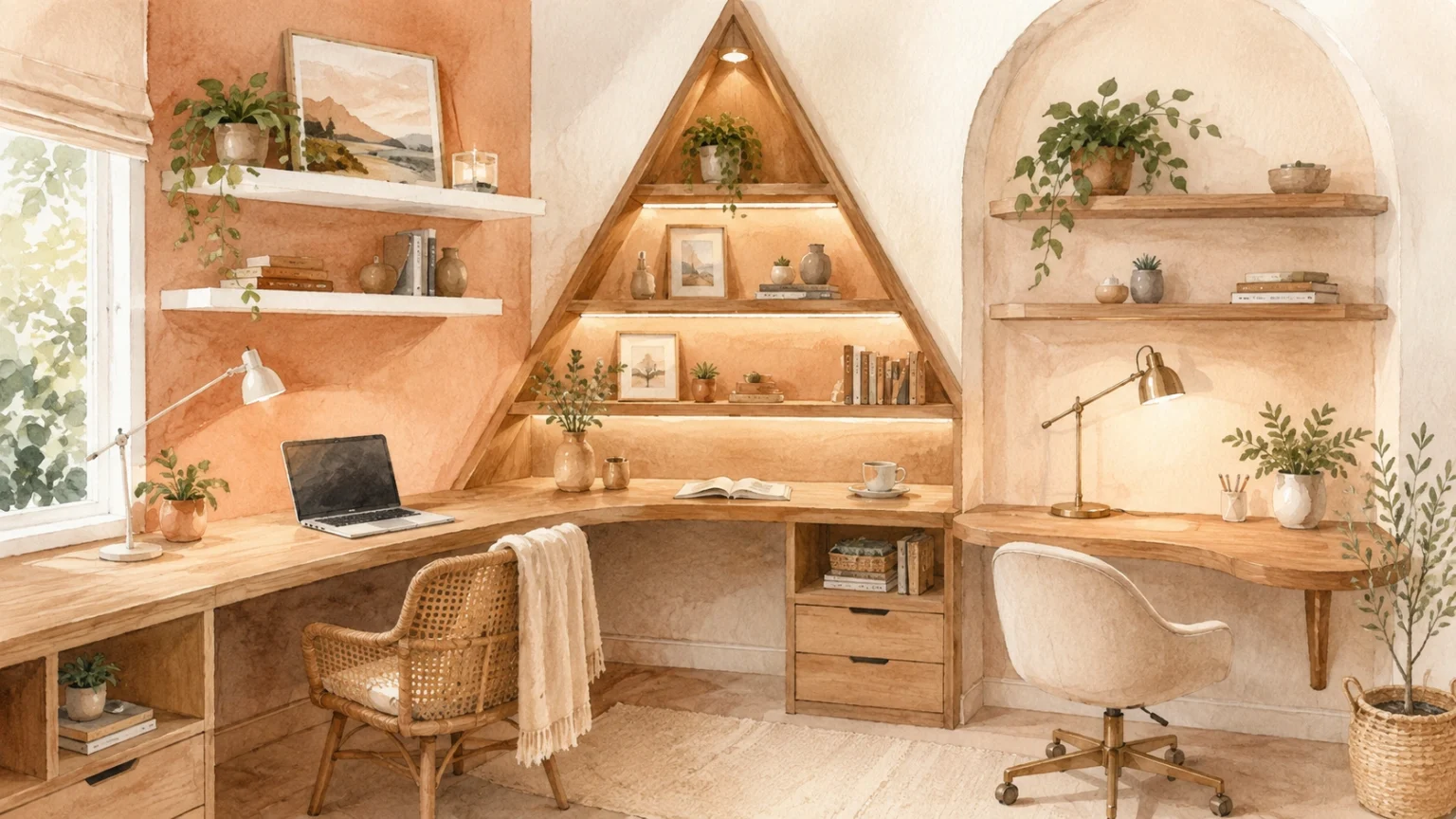
At 2:18 on a Thursday afternoon, I was trying to finish a video call while balancing my mouse on top of a closed notebook.
My laptop sat on a wooden riser at the back of a narrow white desk. The separate keyboard took up almost all the remaining space, so my coffee was tucked beside the laptop charger and my paper notes were resting partly on my lap.
Harley opened the door to ask where the colored pencils were. I turned too quickly, caught the charging cable with my elbow, and knocked the coffee across my notes.
The laptop did not fall, but the stand shifted forward far enough to make my heart stop for a second. I muted the call, moved the cup, wiped the desk with the sleeve of my cardigan, and tried to look calm when I turned the camera back on.
My neck was already stiff. My right shoulder felt tired from reaching sideways for the mouse, and my lower back had been uncomfortable since lunch.
That was the moment I admitted that my work area had failed.
It looked like a minimalist desk setup for small spaces. In reality, it was a narrow console table dressed up as an office.
I had designed a neat photograph, not a place where I could work for several hours.
I Bought the Desk Because It Disappeared Into the Room
When I started working from home more often, I did not have a spare office. The available space was a small section of wall between a bedroom window and a storage cabinet.

I measured the empty wall and searched for the thinnest desk that would fit it. The one I chose was about 39 inches wide and only 16 inches deep.
It looked perfect online.
The product photos showed a laptop, a small lamp, one notebook, and a cup of coffee. There were no cables, chargers, external keyboards, school papers, camera equipment, or half-finished lists.
The desk appeared calm because almost nothing was happening on it.
My real working day was different.
I wrote articles, answered messages, checked images, joined calls, compared research pages, and kept notes beside me. Bentley and Harley also came into the room with forms, questions, books, and things that needed signing.
A 16-inch-deep surface could hold a closed laptop beautifully. It could not comfortably hold the way I actually worked.
Still, I convinced myself that the problem was clutter.
I bought a pen cup, cable clips, a small tray, and two matching storage boxes. I moved objects around every few days and took things off the desk whenever it started feeling crowded.
The surface became tidier, but my posture did not improve.
I Had Confused Visual Minimalism With Functional Minimalism

I thought minimalism meant placing as little as possible on the desk.
That idea works in a styling photo. It does not always work during an eight-hour workday.
A functional minimalist setup keeps the things required for safe, comfortable work and removes the things that do not serve the job.
My desk had the opposite balance.
I had removed useful working space so the furniture would look slim. Then I added small products to manage the problems created by the slim furniture.
I owned cable clips but lacked room to position the mouse near my hand. I had a pretty laptop stand but nowhere sensible to place the keyboard beneath it.
I had a small lamp chosen for its shape, yet the laptop screen still reflected the window during the afternoon.
The desk was not simple. It was inconvenient in a visually quiet way.
That failure changed the way I now think about every item sold under words such as minimalist, compact, slim, space-saving, or ergonomic.
Those words may describe a product. They do not prove that the product will suit the user, equipment, room, or type of work.
The Occupational Safety and Health Administration explains that workstation parts need to be selected and arranged so the user can work in more neutral positions. Its computer workstation component guidance treats the chair, desk, keyboard, mouse, and monitor as parts of one connected system rather than isolated purchases.
I had purchased each part separately because it looked suitable. I had never checked whether the parts worked together.
My Laptop Stand Solved One Problem and Created Another
The laptop screen had originally been too low. By early afternoon, I often noticed that my head was leaning forward.
A stand seemed like the obvious solution.
I raised the laptop until the screen was closer to eye level, which did make viewing more comfortable. However, I could no longer type on the built-in keyboard without lifting my arms.
I added a separate keyboard.
That moved my hands lower, but the narrow desk forced the keyboard close to the front edge. My wrists sometimes rested against the hard edge while I typed.
The mouse then had to move farther to the right because there was not enough room beside the keyboard. I repeatedly reached away from my body to use it.
Each correction created another problem because the surface had not been chosen for the full arrangement.
The National Institute for Occupational Safety and Health notes that laptops create a special challenge because the keyboard and screen are joined. Its working-from-home ergonomics advice suggests using an external display or raising the screen when needed, while also considering the separate keyboard and other equipment required for comfortable work.
I had followed half of that idea.
I raised the screen but had not reserved enough surface for everything that made the raised screen usable.
The Measurement That Mattered Was Not the Empty Wall
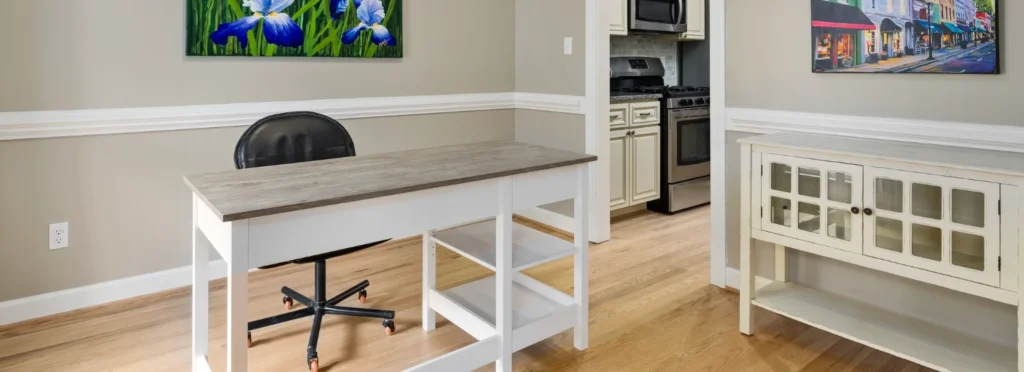
After the coffee spill, I cleared the surface completely and started again.
This time, I did not begin with the room.
I began with my body and the tasks I performed.
I placed my chair where I usually sat. I adjusted it until my shoulders could relax and my feet felt supported.
Then I positioned the keyboard where my elbows and hands felt natural. I placed the mouse close enough that I did not need to reach or move my shoulder forward.
Only after that did I work out where the screen needed to sit.
I wrote 1.Anchor across the top of my notes: the desk had to fit my body before it fit the room.
This changed the buying decision completely.
The desk still needed to be small, but “small” could no longer mean the shallowest product available. It needed enough depth for the screen to sit at a comfortable viewing distance while leaving space for my keyboard and hands.
It also needed open knee space underneath.
A drawer placed across the bottom of a compact desk can look useful, but it may reduce the space available for the thighs or force the chair farther away.
The Cornell University ergonomic checklist warns against choosing fixed workstation dimensions without considering the individual user, equipment, environment, and work being performed. It also explains that changing one part of the setup can affect several others. The Cornell computer workstation checklist helped me understand why copying someone else’s desk measurements would not solve my own problem.
I measured the arrangement that worked, not only the corner that looked empty.
I Stopped Treating the Chair as a Decoration
My first chair was a padded dining chair.
It looked good with the desk, fitted under it neatly, and did not make the bedroom corner feel like an office. I considered those features more important than adjustment.
The seat height could not change. The back did not support the lower part of my back, and the seat was slightly too high for my feet to rest comfortably.
I often solved that by leaning forward.
The forward position made it easier to reach the keyboard, but it meant the chair’s back was doing almost nothing. By the middle of the day, I was sitting on the front edge.
When I began comparing office chairs, I found that the word ergonomic appeared on products with very different features.
Some had adjustable seat height but no useful back adjustment. Others had large armrests that stopped the chair from moving close enough to my desk.
A few chairs looked heavily padded but offered little control over the sitting position.
I stopped judging them by the label and looked at what could actually change.
The Canadian Centre for Occupational Health and Safety explains that the chair, work surface, and floor all affect posture. Its office-chair adjustment guidance says at least two of these contact areas need to be adjustable for a comfortable arrangement.
That detail helped me judge chairs more carefully.
I needed a seat that could move low enough for my desk, a backrest that met my lower back, and enough clearance to bring the chair close to the keyboard.
I also checked whether the armrests could lower or move out of the way. Armrests are not helpful when they hit the desk and force the user to sit farther back.
The chair I kept was not the most expensive option I tested. It was the one I could adjust without fighting it.
The Monitor Did Not Need to Dominate the Desk
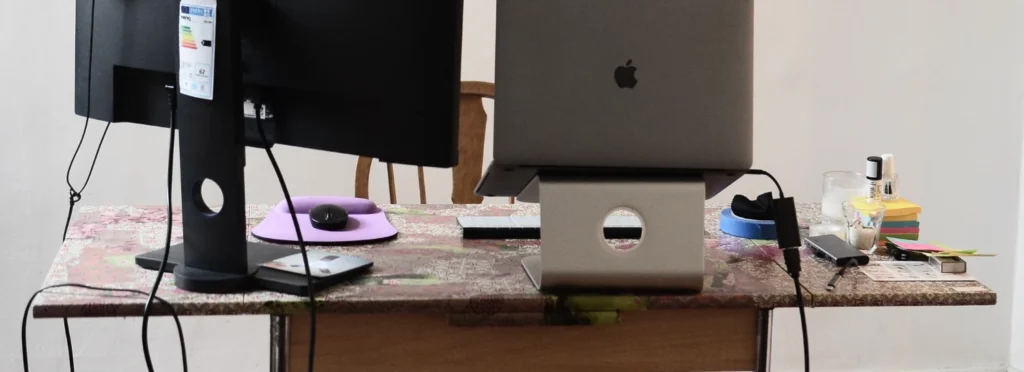
I originally thought that a small room required a laptop because a monitor would take up too much space.
That assumption was only partly true.
A monitor with a large fixed stand can use a deep section of the desktop. A suitable monitor arm can free some of that area, but only when the desk can safely accept the clamp and the screen matches the arm’s size and weight limits.
That means checking more than the product photograph.
I looked at the rear edge of the desk, the thickness of the top, the strength of the material, the clamp clearance, the monitor’s mounting pattern, and the cable length.
A hollow desktop or thin folding surface may not be suitable for every monitor arm. A desk pushed tightly against a wall may also leave no room for the clamp.
These were details I had ignored when I was shopping by appearance.
For my space, one moderate-sized screen on a simple adjustable arm worked better than a laptop plus a large decorative riser. The laptop could sit closed in a vertical stand when I used it with the monitor.
I did not add a second screen because I had no clear need for one.
The Canadian occupational-health guidance on monitor positioning explains that looking upward can be tiring and that screen position should allow a comfortable downward viewing angle.
The UK Health and Safety Executive also recommends keeping the screen roughly an arm’s length away, with the top around eye level, while adjusting the rest of the workstation so the shoulders remain relaxed. Its good-posture guidance for screen work provides a useful visual check rather than demanding one rigid pose for everyone.
My new monitor position was not chosen because it looked centred in a photo. It was chosen because I could read without leaning toward it.
The Mouse Had Been Exposing the Weakest Part of the Setup
The mouse seemed like a small detail until I noticed how many times I reached for it.
My writing work involves highlighting, opening tabs, editing, moving images, and switching between documents. A mouse that sits a few inches too far away creates the same reach again and again.
On my narrow desk, I had treated the mouse as whatever could fit after everything else had been placed.
It belonged at the centre of the decision.
The Canadian Centre for Occupational Health and Safety says the mouse should remain close enough to reduce awkward reaching. Its mouse-position guidance even discusses placing the device closer to the centre when that position reduces shoulder movement.
I replaced my full-width keyboard with a compact model because I rarely used the number pad. That gave the mouse more space beside it and brought my working hand closer to my body.
This was one of the few purchases that genuinely made the setup feel more minimal.
The smaller keyboard did not remove a feature I needed. It removed a section I almost never used and gave useful space back to my main task.
That is the type of reduction I now trust.
The Window Was Good for the Room but Bad for the Screen
I had chosen the desk corner partly because it was close to a window.
Natural light made the room feel open, and I liked seeing the trees while I worked. What I failed to notice during my quick setup was how the light changed through the day.
In the morning, the window was pleasant. In the afternoon, it reflected across the screen.
I responded by increasing the display brightness and leaning forward. Neither choice fixed the source of the problem.
The solution was not removing the desk from the window entirely. I turned the workstation so the screen sat more nearly perpendicular to the light and added a simple blind that could soften the strongest afternoon glare.
I also changed the small desk lamp.
The original lamp had been chosen because it looked clean and fitted beneath a shelf. Its bright exposed bulb created another reflection on the screen.
The replacement had an adjustable head that allowed the light to fall on my notebook without pointing toward the monitor.
The American Optometric Association explains that glare, poor viewing distance, unsuitable lighting, screen position, and seating can all contribute to digital eye discomfort. Its computer vision syndrome guidance also recommends regular changes of visual focus during long periods of screen work.
The lesson was not that every small desk needs a special lamp.
It was that lighting has a job. A beautiful light that makes the work harder has failed that job.
Storage Above the Desk Was Not Free Space
When the desktop became crowded, I assumed the wall above it was the answer.
I added two shelves.
The lower shelf quickly filled with notebooks, a small plant, spare cables, reference books, and a candle. I kept adding things because the surface below looked cleaner.
However, I began reaching upward several times a day. The shelf also limited how high I could place the monitor.
One afternoon, I caught the plant pot with the corner of a notebook and spilled dry soil behind the desk.
That was another small failure with a clear lesson.
Vertical storage is useful only when the stored items match the location.
The things I use every hour should remain within easy reach. Items needed once a week can go in a drawer, cabinet, or higher shelf.
Objects used only for decoration have to justify the space they occupy.
I kept one shelf, raised it slightly, and reduced what lived there. Frequently used papers moved into a slim vertical file beside the desk rather than above my head.
FsiBlog’s home organisation tips for reducing everyday clutter make the same distinction between giving useful items a clear home and simply moving clutter into another container.
The aim was not an empty wall. It was a work area where I could reach what I needed without twisting, stretching, or searching.
I Nearly Bought a Standing Desk for the Wrong Reason
Once I accepted that my setup was poor, I wanted one purchase to solve everything.
A height-adjustable desk seemed like that purchase.
Standing desks can be useful, but I was in danger of repeating my original mistake. I was choosing a category before understanding the job.
The questions became practical.
Would the desk lower enough for comfortable seated work? Would it rise high enough without wobbling? Would the top provide enough depth? Where would the control box, power cable, and computer cables go?
Would the frame fit around the baseboard and storage cabinet? Could the chair still move through the room?
I also had to be honest about whether I would change position during the day or simply leave the desk at one height.
The HSE’s home-working display-screen guidance stresses comfortable, sustainable posture, suitable equipment, and breaks or changes of activity. It does not suggest that one type of desk removes the need to move.
I decided not to buy the standing desk.
My small room already gave me natural reasons to stand. The printer was across the room, I took phone calls while walking, and school routines pulled me away from the screen.
A fixed desk with the correct dimensions solved the immediate problem for less money and occupied less floor area.
That decision may be different for another person. The important part is that the standing function should answer a real need, not work as proof that the setup is ergonomic.
I Bought in the Wrong Order the First Time
My first shopping order looked like this:
A slim desk, a chair that matched it, a lamp, storage boxes, a laptop stand, cable clips, and finally a keyboard.
The order was based on what the corner would look like.
The second version began differently.
I adjusted the chair first. Then I placed the screen, keyboard, and mouse around my body.
After that, I chose a desk that could support those positions within the available room.
The Cornell workstation guidance suggests reviewing the chair before the monitor, keyboard, mouse, and other items. Its workstation setup resource also notes that long-term laptop use may require a separate keyboard or monitor because the attached keyboard and screen limit independent adjustment.
That order feels less exciting than buying the desk first, but it reduces expensive guessing.
The desk is not the whole workstation. It is the surface that must allow the important parts to work together.
My New Setup Was Still Small
Correcting the setup did not require turning the bedroom into a large office.
The replacement desk was only a little wider and several inches deeper than the console table. That extra depth made a larger difference than I expected.
The screen could move farther away. The keyboard no longer sat against the front edge, and the mouse had a proper working area.
The chair fitted beneath the desk because I had checked the armrest and frame clearance before buying.
I mounted the power strip under the rear section rather than leaving it on the floor. One cable sleeve carried the main wires down the desk leg.
I kept one lamp, one notebook, a pen cup, and the equipment needed for the current task on the surface.
Everything else had a nearby home.
The setup looked less like the original product photograph, but it felt calmer because I was no longer moving objects every time I needed to work.
For readers trying to improve a room without rebuilding it, FsiBlog’s small home improvements that do not require costly renovation has more ideas based on changing layout, lighting, storage, and existing furniture before beginning major work.
The Commercial Claims I Now Treat Carefully
The word ergonomic appears on chairs, keyboards, mice, footrests, cushions, laptop stands, and desks.
I no longer treat it as a complete buying reason.
An ergonomic item has to fit the person, task, and rest of the workstation. A chair can have ten adjustment controls and still be unsuitable if the seat does not fit the user.
A monitor arm can save space but become useless when it cannot attach safely to the desk.
A compact keyboard can bring the mouse closer, but it may frustrate someone who enters numbers throughout the day.
A fold-down wall desk can free floor area after work, yet provide too little depth or leg clearance while open.
A sit-stand converter may cost less than a full adjustable desk but raise the keyboard too high when seated.
I now read specifications before lifestyle language.
For a desk, I check the full dimensions, usable depth, frame position, knee clearance, weight capacity, surface material, cable access, and return terms.
For a chair, I check the adjustment ranges rather than counting the number of features.
For a monitor arm, I check screen weight, mounting pattern, clamp requirements, movement range, and warranty.
For a lamp, I check whether the head can direct light where I need it.
This is where a minimalist setup can save money. It encourages buying fewer objects, but each object has to earn its space.
FsiBlog’s article on simple money habits that reduce daily stress supports the same approach: define the real need before paying for a quick solution.
The Desk Was Not Responsible for Every Uncomfortable Day
One final lesson was less convenient.
Even after correcting the setup, I could still feel uncomfortable when I stayed in one position for too long.
I had expected good furniture to remove the need to notice my habits.
It could not.
No chair can make several hours of stillness feel good forever. No monitor height can help when I move my face closer to the screen because I am tired.
I began using natural breaks rather than a complicated reminder system.
I stood when I answered certain phone calls. I walked to refill my water instead of keeping a large jug beside the desk.
I stopped eating lunch in front of the screen. When possible, I changed tasks after a long writing period.
These actions did not require another product.
The National Institute for Occupational Safety and Health describes awkward and static postures as workplace risk factors and recommends looking at the full job, not only the furniture. Its ergonomics risk-factor guidance helped me see that equipment, repetition, posture, and work organisation can overlap.
The desk had needed correction, but my work routine did too.
What The Coffee Spill Actually Fixed
The stained notes were not important. I rewrote them after the call.
The useful part of that afternoon was seeing the setup fail all at once.
The cup had nowhere safe to sit because the desktop was too shallow. The cable crossed my movement path because there was no real cable plan.
The mouse sat too far away because the keyboard occupied nearly the full width. The laptop was unstable because I had raised it on furniture that had not been chosen for the complete equipment arrangement.
My body had been warning me before the coffee spilled. The accident simply made the bad design impossible to ignore.
The new workspace is not perfect.
Bentley still leaves papers beside my keyboard. Harley still appears during calls with questions that feel urgent only to Harley.
Some mornings, the desk gathers cups and notes faster than I clear them.
The difference is that normal family life no longer exposes a basic weakness in the furniture.
I can move the mouse without reaching. I can see the screen without leaning forward, and I can bring the chair close enough to work without the armrests hitting the desk.
When the workday ends, I put the keyboard beneath the monitor, close the notebook, and leave the surface mostly clear.
That is the minimalist part I was trying to create from the beginning.
It did not come from buying the narrowest desk or owning the fewest objects. It came from removing the friction I had accidentally designed into the room.
Frequently Asked Questions About Small-Space Desk Ergonomics
What is the minimum desk depth needed for an ergonomic setup?
A minimum depth of 20 to 24 inches (50–60 cm) is recommended for a comfortable setup. This provides enough distance to position your monitor roughly an arm’s length away while leaving sufficient surface space for an external keyboard and wrist movement.
How do you make a laptop setup ergonomic on a shallow desk?
To optimize a laptop on a narrow or shallow surface:
- Place the laptop on a compact vertical stand or riser to bring the top of the screen to eye level.
- Use a separate, tenkeyless (compact) external keyboard to save horizontal desk space.
- Keep your external mouse close to the keyboard to prevent unnecessary shoulder reaching.
Are standing desk converters worth it for small home offices?
Sit-stand converters can work, but they present specific challenges in small spaces:
- Added Height: They elevate the base surface, which can raise your keyboard too high while seated if your chair doesn’t adjust high enough.
- Footprint: They require significant desktop depth and can make a compact desk feel top-heavy or cluttered.
- Alternative: A fixed desk with proper measurements paired with scheduled movement breaks often works better for tight corners.
How do I stop monitor glare if my desk is near a window?
To reduce eye strain caused by natural window light:
- Position your desk perpendicular (at a 90-degree angle) to the window rather than facing directly toward or away from it.
- Use adjustable blinds or sheer curtains to diffuse direct afternoon sunlight.
- Choose a desk lamp with a flexible or directional head so light falls on your paperwork without reflecting off the screen.